Anbindung an die Kerberos-Infrastruktur des RRZE

Als Hilfe zur Selbsthilfe bieten wir Anleitungen zu häufig wiederkehrenden Problemen als Online-Dokumentation an.
Dieser Abschnitt ist für Systemadministratoren bestimmt, die die jeweiligen Arbeiten in Eigenverantwortung selbst durchführen möchten.
Für detaillierte Anleitungen und Hilfestellungen lesen Sie unten weiter.

Das RRZE setzt – wo immer möglich – auf die Authentifizierung mit Kerberos. Manche Dienste sind sogar ausschließlich per Kerberos nutzbar (z.B. das Linux-Homelaufwerk).
Die folgenden Anleitungen sollen Ihnen helfen Ihre selbstverwalteten Systeme an die Kerberos Infrastruktur des RRZE anzubinden.

  • Kerberos und langlaufende Prozesse
    Hinweise zur Ausführung langlaufender Prozesse (>10 Stunden) und Kerberos
    Bitte beachten, um Probleme mit abgebrochenen Jobs zu vermeiden!

Anbindung an die LDAP-Infrastruktur des RRZE

Als Hilfe zur Selbsthilfe bieten wir Anleitungen zu häufig wiederkehrenden Problemen als Online-Dokumentation an.
Dieser Abschnitt ist für Systemadministratoren bestimmt, die die jeweiligen Arbeiten in Eigenverantwortung selbst durchführen möchten.
Für detaillierte Anleitungen und Hilfestellungen lesen Sie unten weiter.

In der folgenden Liste finden Sie Hilfestellungen zur Anbindung von selbstverwalteten Systemen an die LDAP-Infrastruktur des RRZE.

  • LDAP-Anbindung für Rechner mit SSSD
    Diese Anleitung beschreibt das Anlegen eines Hosteintrags zum Zugriff auf die RRZE LDAP-Server für einen selbstverwalteten Rechner und die Installation und Konfiguration des SSSD zur Benutzerauthentifizierung unter Ubuntu.
  • LDAP-Anbindung generischer Systeme
    Diese Anleitung beschreibt allgemein die Infrastruktur der RRZE LDAP-Server, um ggf eine Anbindung von eigenen Softwarepaketen realisieren zu können
  • LDAP-Gruppen
    Diese Anleitung beschreibt wie Sie automatisch befüllte oder manuell gepflegte Gruppen für Ihre Zwecke in den LDAP-Servern des RRZE bereitstellen lassen können

Ubuntu Release Upgrade

Die Nachfolgende Anleitung beschreibt wie man ein Release Upgrade einer Ubuntu LTS Distribution durchführt.

Vorbereitung

Zunächst muss das System auf dem aktuellen Stand gebracht werden:

bash$ sudo apt update && apt dist-upgrade

Nachdem alle Pakete samt Kernel aktualisiert sind, ist ein Neustart des Systems notwendig:

bash$ sudo reboot

Durchführen des Release Upgrades

Es gibt zwei Möglichkeiten ein Release Upgrade durchzuführen:

    • Interactive
bash$ sudo do-release-upgrade

Beim Ändern von Konfigurationsdateien durch den Updater wird immer eine interaktive Eingabe benötigt.

    • Non-Interactive
bash$ sudo do-release-upgrade -f DistUpgradeViewNonInteractive

Das Ändern von Konfigurationsdateien erfolgt automatisch. Es wird immer die Default-Option genutzt, wenn eine Eingabe notwendig ist.

Erfahrungsgemäß funktioniert die Non-Interactive Variante gut. Wenn gewünscht wird, dass ohne Nachfragen das Release Upgrade bis zum Ende durchläuft ist diese Variante zu wählen. Falls aber eine genaue Anzeige und Nachfrage bei Änderungen gewünscht wird, sollte die Interactive Variante gewählt werden.

Falls das Kommando do-release-upgrade nicht gefunden wird, muss das Paket ubuntu-release-upgrader-core installiert werden.

bash$ sudo apt install ubuntu-release-upgrader-core

Troubleshooting

Falls der Release Upgrader abbricht liegt dies meistens an externen Ubuntu PPAs die händisch hinzugefügt wurden. Wenn dieses Problem auftritt, sollten alle PPAs unter /etc/apt/sources.list.d/ die händisch eingefügt wurden vor dem Release Upgrade deaktiviert werden. Detaillierte Loginformationen zum Release-Upgrade sind unter /var/log/dist-upgrade/main.log zu finden.
 

Nacharbeiten

Nachdem das Release Upgrade durchgeführt wurde ist ein Neustart des Systems Notwendig:

bash$ sudo reboot

Nun kann geprüft werden, ob die nächsthöhere LTS Distribution installiert ist:

bash$ lsb_release -a

Anpassen der händisch eingefügten PPAs

Für alle händisch eingefügten Pakdt Repositiories unter /etc/apt/sources.list.d/ sind unter Umständen die URLs anzupassen.

Falls beim Aufruf des Highstates nicht alle States erfolgreich durchgeführt werden bitte an die Linux-Gruppe wenden.

Fehler LVMs bei Ubuntu 20.04

Falls folgende Fehlermeldung kommt:

File descriptor 3 (pipe:[326242]) leaked on vgs invocation. Parent PID 24734: grub-install
  WARNING: PV /dev/sda1 in VG system is using an old PV header, modify the VG to update.
File descriptor 3 (pipe:[326242]) leaked on vgs invocation. Parent PID 24734: grub-install
  WARNING: PV /dev/sda1 in VG system is using an old PV header, modify the VG to update.
grub-install: error: cannot find a GRUB drive for /dev/disk/by-id/cciss-3600508b1001036363520202020200002.  Check your device.map.
dpkg: error processing package grub-pc (--configure):
 installed grub-pc package post-installation script subprocess returned error exit status 1
Errors were encountered while processing:
 grub-pc

Sind folgende Schritte notwendig:

bash$ sudo vgck --update-metadata system
bash$ sudo apt upgrade

Beim letzten Befehl muss dann das richtige Volume gewählt werden (im Normalfall /dev/sda0).


FAU archive (english translation)

Applying for space

In order to use the FAU archive you need to fill out the application form.

The archived data will (by default) have a retention time of 10 years (i.e. be kept 10 years on tape). Chose the retention period with care, because it cannot be altered afterwards and data will be deleted without further notice once the retention period expired! Checking the expiration date of your archived files (see below on how to do that) – it’s your responsibility!
The default of 10 years was chosen because that usually is what e.g. DFG requires.
There are also archive classes to keep data only 1, 2, or 5 years.
There are also archive classes with 25 and 99 years which are much more expensive. However, please be aware that RRZE can not really guarantee such long periods – in fact it is pretty unrealistic that the data will be kept for that long without a system change. This is merely intended as a marker that you probably want to or have to keep this data for a very long time.

Using the Archive

The archive can only be accessed from a specific server.

Log onto fundusa1.rrze.uni-erlangen.de using SSH. This frontend can only be reached from the university network (including VPN).

Your RRZE-Linux-$Home as well as the HPC-NFS filesystems are (auto)mounted on fundusa1. The RRZE-Windows-Home can also be found at /home/rzwin/$USER. Group ids on the HPC file systems may not resolve correctly on fundusa1.

If you are logged into fundusa1 for a long time (at the time of writing this, more than 1 day), your Kerberos ticket will expire, and access to the RRZE-Homes will no longer work, resulting in „Permission denied“ errors when trying to access it. To solve this issue, just log in again. Advanced users may also extend their kerberos tickets a few times (maximum 1 week) – the tool you might want to google for that is ‚krenew‘.

Local storage is available on fundusa1 in case you have to transfer („stage“) the data before (e.g. using rsync, scp, etc.). To allocate temporary, local disk space for staging files, use
ws_allocate SOMENAME 7
The generated directory will be displayed. The directory name will consist of your user name and the name you give as SOMENAME.

The directory will automatically be removed after the specified duration (7 days – the last argument of the command above).

Transfer/Copy your data into your staging directory /staging/$USER-SOMENAME

For optimal use of the archive, tar/zip small files before archiving them!

The archive is optimised to handle a small number of large files.
Archiving a large number of files (several ten) at once, is a good indication that you should pack these together into a .zip/.tar.gz/.7z-archive first and store that one instead. Of course this does not apply if the resulting zipfile would be way too large, e.g. far exceed 100 GB.

Both commands, dsmc and dsmj (see below) tend to write log files to the current directory. Thus, remember to start them from a directory where you have write permissions, otherwise the commands will fail with Permission denied.

Using the GUI

There is a X11-based Grafical User Interface (GUI).
In order to be able to use it you must add the option -X or -Y to your ssh call and have an X-Server running locally. Microsoft Windows users may use MobaXterm which is a SSH-client with a builtin X-Server.

The GUI can be started by dsmj.
The most important actions:

  • Archive/Archive (main panel)
  • Archive/Retrieve (main panel)
  • Utilities/Delete Archive Data (top panel)

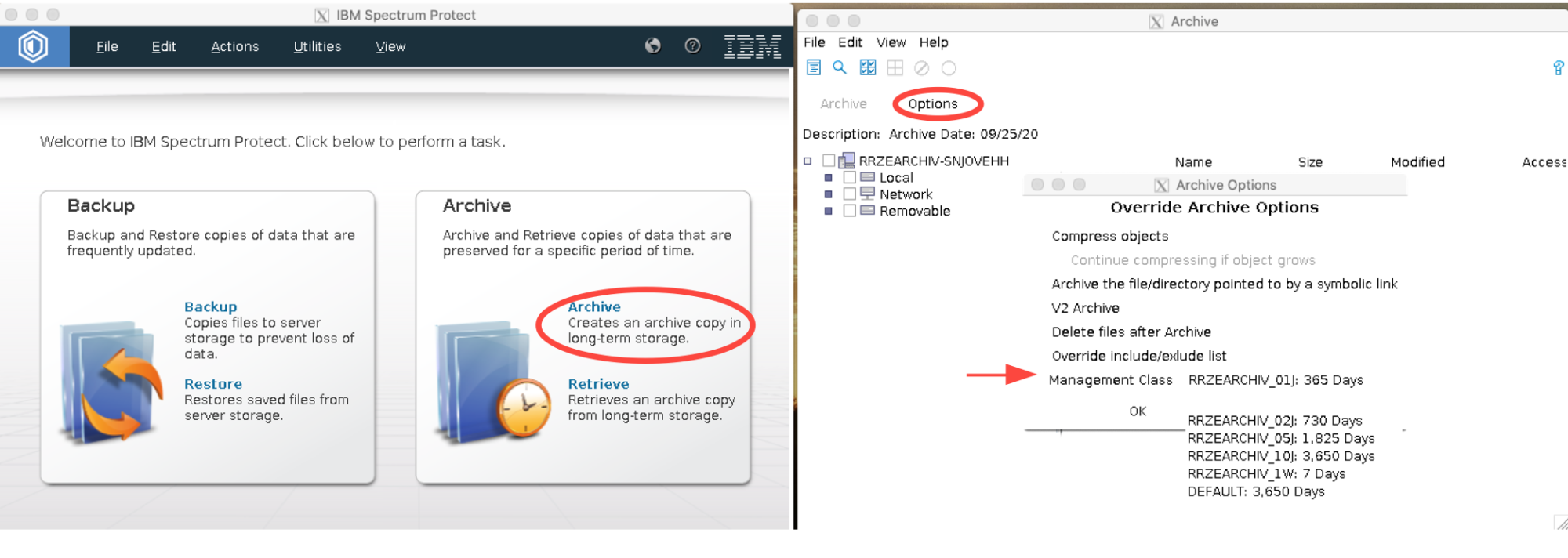
To select a specific archive class (e.g. with only 1, 2 or 5 years retention:
on the archive plane -> Options -> Override incl/excl list => Mgmt Class.)
Select specific archive class

Checking retention of archived data

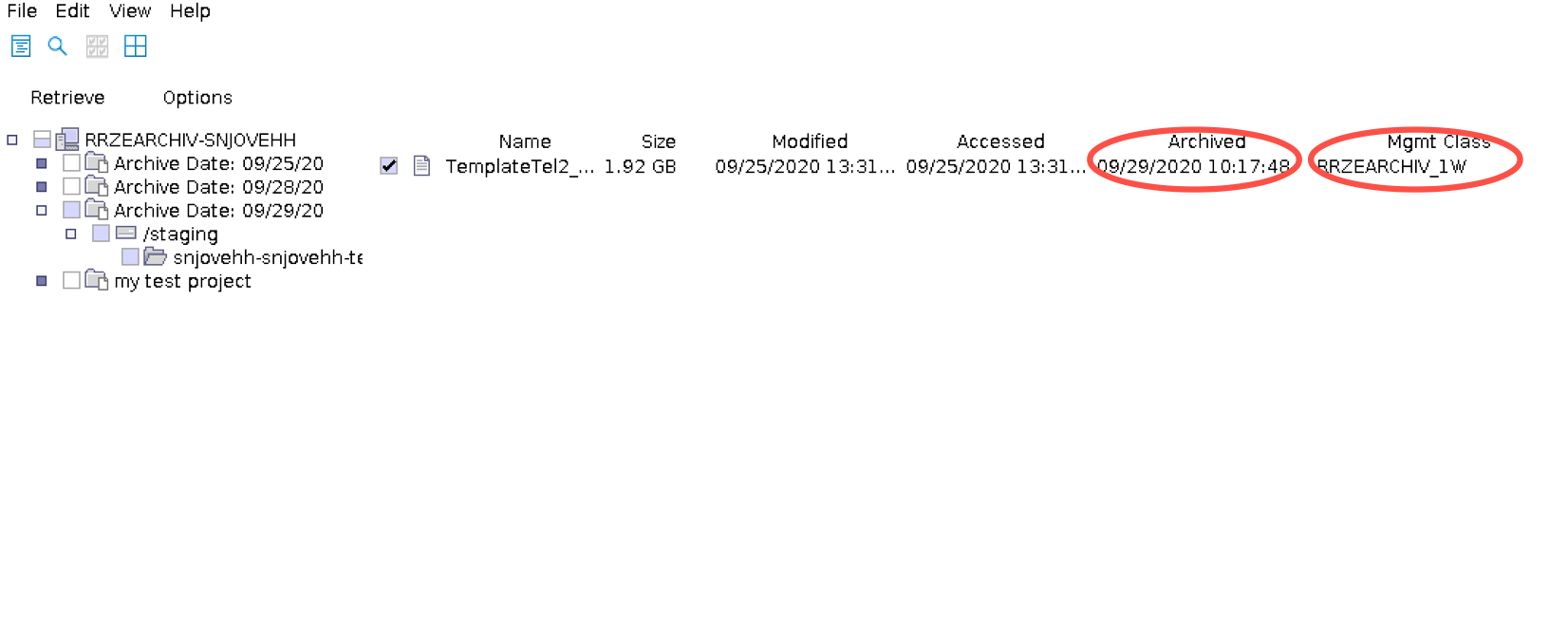
There is no expiry date shown in the GUI, however you can find the archive class and the archive date and calculate it from there. To see this information select a file in the Retrieve window.

Select file

Using the commandline

Archiving data using command line

To create an archive use dsmc archive with suitable arguments.
The most important options are:

  • -desc="your project description is here; max 256 characters"
  • -archmc=RRZEARCHIV_##J with ##=01, 02, 05, 10; while the data will be stored for 10years if nothing is selected, we strongly advise to always explicitly request a specific class and not rely on the default.
  • -deletefiles delete files from your staging directory after archiving
  • -subdir=yes subdirectories are included in the archive

A full command could look like this dsmc archive -desc="project_A Partial archive #1" [-deletefiles] -subdir=yes /staging/$USER-archiv/projA-a1/

Retrieving data using command line

To query your archive on the command line use dsmc query archive /staging/$USER-SOMENAME/project/
You need to specify at least parts of the path and the slash at the end is important!,
You can adding -subdir=yes (will show subdirectories as well) or -desc="your archive description" (will only show archives with matching description) for additional selection in the output list.
Using dsmc query archive is the only way to display the expiration date of your archives!

To retrieve data on the command line use dsmc retrieve
An example could look like:
dsmc retrieve -replace=no -subdir=yes -desc="project_A Partial archive #1" /staging/$USER-archiv/projA-a1/ [DESTDIR]
the -replace=no prevents accidental overwriting of existing files in [DESTDIR].

Querying your archive / finding your archived data

Proper organization of your data before archiving is mandatory.

Checking retention of archived data

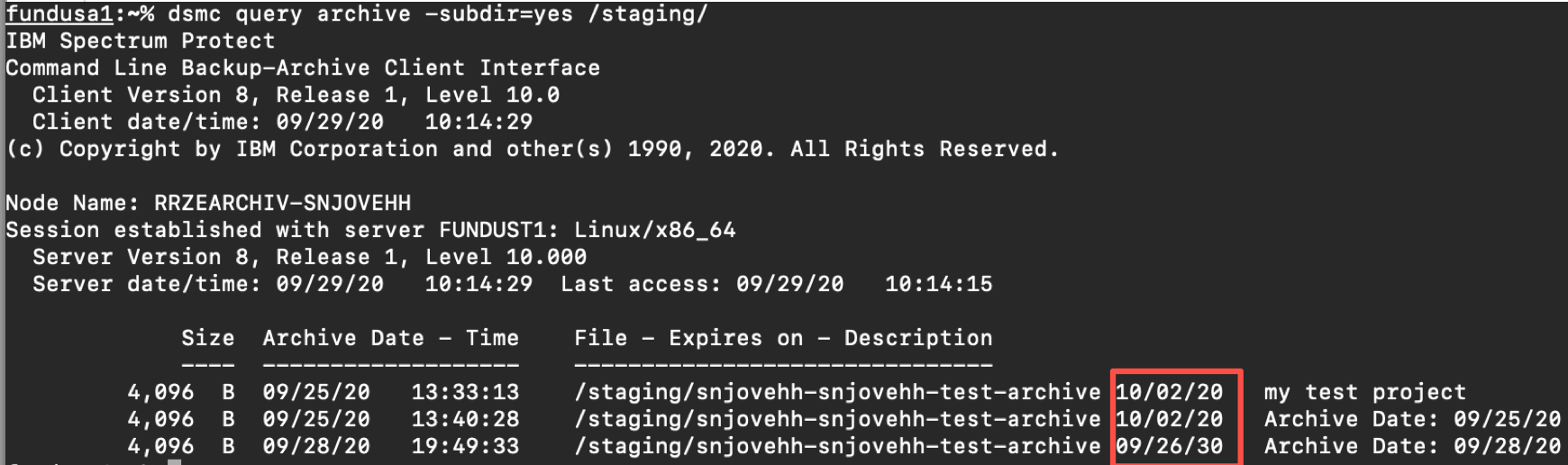
You can check the retention of archived files using the dsmc query archive command. The expiry date will be listed in the output (see screenshot below).
Code

The trailing slash when specifying directory for the query is important. dsmc query archive -subdir=yes /staging will not find anything!

Further usage of the command line

To delete archived data in the archive before the retention period expired, use dsmc del
e.g., dsmc del archive -desc="project_A Partial archive #1" /staging/$USER-archiv/\*.zip [-pick]

Get help on the dsmc command
dsmc help

Note

If no description is specified, the current date is used by default.
If the same file is achieved with different descriptions, it will be multiple times in the archive (and also accounted multiple times)
Aufbewahrungsrichtlinien für persönliche Ordner richtig einrichten

Aufbewahrungsrichtlinien für persönliche Ordner richtig einrichten

Wie kann ich Aufbewahrungsrichtlinien für persönliche Ordner richtig einrichten?

Aufbewahrungsrichtlinien (engl. „retention policies“) sind Exchange-Regelsets, welche in Outlook und in der Outlook Web App (OWA) auf persönliche Ordner angewandt werden können.

Damit können E-Mails automatisch nach einer vom Benutzer vorgegebenen Zeit gelöscht werden. Auch eine automatisierte Archivierung von E-Mails in das persönliche Online-Archiv kann nach einer festgelegten Zeitspanne erfolgen.

Um die Vergabe von Aufbewahrungsrichtlinien für persönliche Ordner für ein Postfach aktiv zu schalten, müssen Sie diese im IdM-Portal im Bereich „Meine E-Mail-Dienstleistungen“ aktivieren. Bei Beantragung eines Online-Archivs wird die Funktion „Aufbewahrungsrichtlinien“ automatisch für ihr Postfach aktiviert.

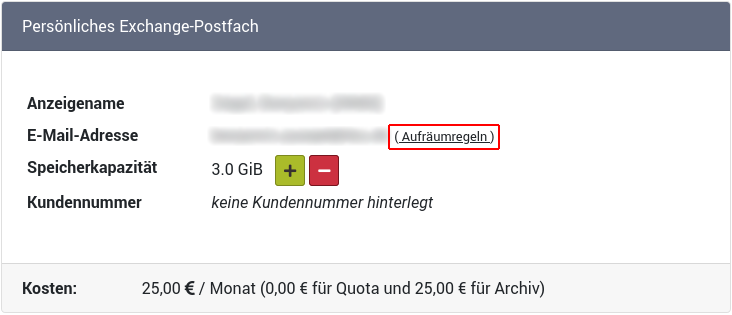
Bitte klicken Sie dazu auf folgende rot markierte Schaltfläche („Aufräumregeln“), um die Aufbewahrungsrichtlinien-Einstellungen anzuzeigen.

"Persönliches Exchange-Postfach"

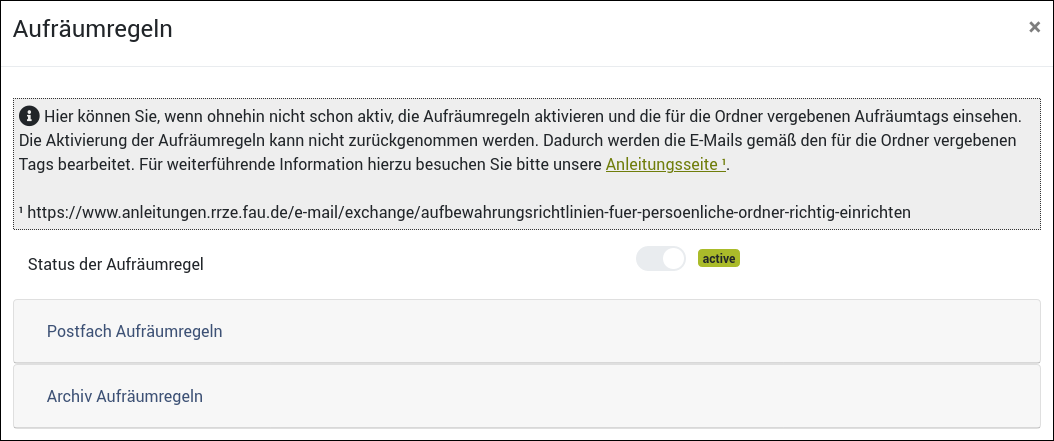
Anschließend öffnet sich ein Fenster, in dem Sie Aufbewahrungsrichtlinien für Ihr persönliches Exchange-Postfach aktivieren können. Dort können Sie auch die Regeln sehen, welche Sie gegebenenfalls bereits für Ihre Postfach- oder Archiv-Ordner angelegt haben.

Wichtig: Aufbewahrungsrichtlinien können nur in Microsoft Outlook oder in der Outlook Web App (OWA) auf Ordner vergeben werden. Die Ansicht im IdM-Portal dient nur Ihrer Übersicht:

"Aufräumregeln"

Bitte beachten Sie zudem folgende Sachverhalte:

  • Aufbewahrungsrichtlinien können nur auf persönliche Ordner (=selbst erstellte Ordner) angewandt werden.
  • Beim automatisierten Verschieben von E-Mails in das Online-Archiv wird durch Exchange im Online-Archiv die gleiche Ordnerstruktur wie im Postfach angelegt. Die für persönliche Ordner hinterlegten individuellen Regeln werden ebenfalls für die entsprechenden Archiv-Ordner hinterlegt. Dies bedeutet, dass eventuell vorhandene Löschregeln im Postfach auf persönliche Ordner auch im Archiv angewandt werden. Die vergebenen Regeln werden zudem täglich automatisch vom Postfach zum Online-Archiv synchronisiert.


Aufbewahrungsrichtlinien in Microsoft Outlook einrichten:

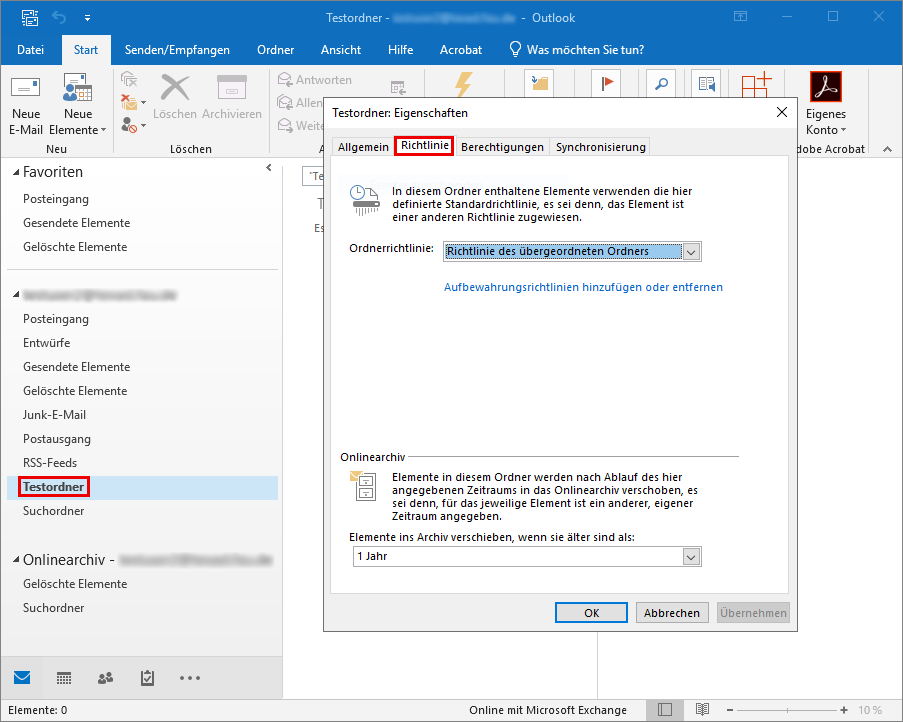
Nach Einrichtung der Aufbewahrungsrichtlinien im IdM-Portal erscheint nach einem Neustart von Outlook ein neuer Reiter „Richtlinie“ bei den Eigenschaften persönlicher Ordner (Rechtsklick auf den Ordner):

Aufbewahrungsrichtlinien im Outlook

Im Dropdown-Menü „Ordnerrichtlinie“ können Sie nun die gewünschte Verwahrdauer der E-Mails in diesem Ordner bis zur Löschung angeben. Besitzen Sie ein Onlinearchiv, so erscheint weiter unten beim Reiter „Richtlinie“ der Bereich „Onlinearchiv“. Hier können Sie die Verwahrdauer der E-Mails einstellen, also den Zeitraum, bis diese ins Onlinearchiv verschoben werden.


Aufbewahrungsrichtlinien in der Outlook Web App (OWA) einrichten:

Personen, die nicht mit dem „Microsoft Outlook“-Client arbeiten, können Regelsets auch über die Outlook Web App (OWA) verwalten.

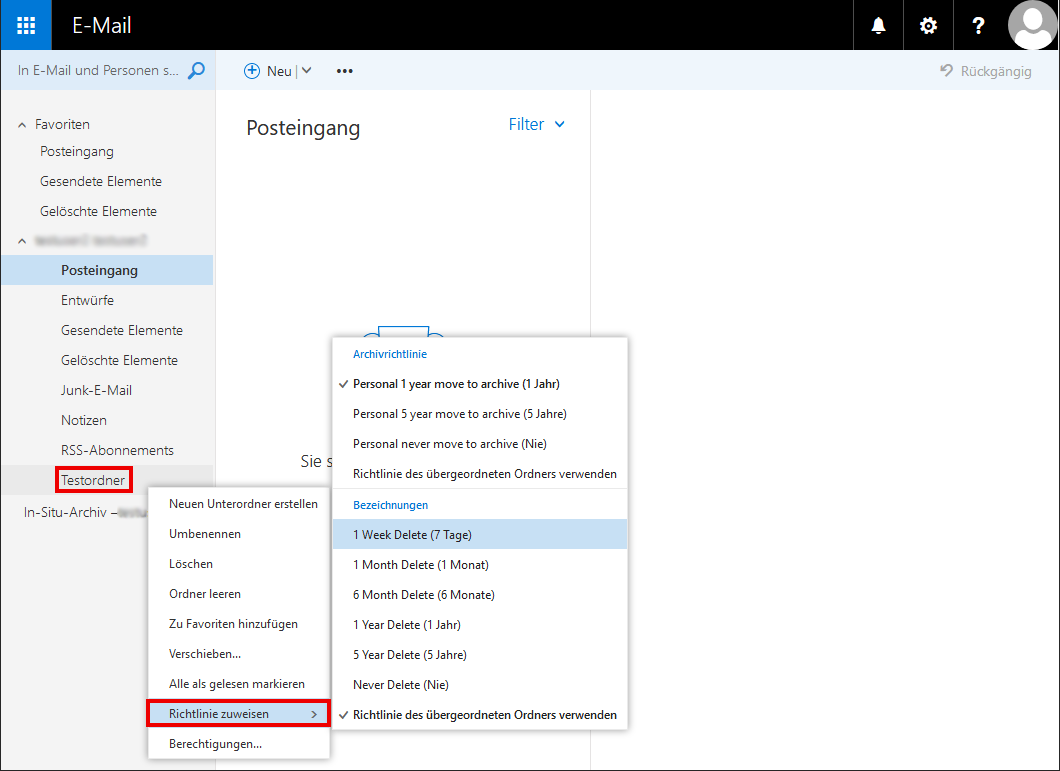
Hier erfolgt die Zuweisung eines Regelsets für einen Ordner folgendermaßen: Bei Rechtsklick auf einen persönlichen Ordner erscheint die Auswahl „Richtlinie zuweisen“.

Wenn Sie auf diese Auswahl mit ihrer Maus fokussieren, erscheinen die Richtlinien, welche dem persönlichen Ordner zugewiesen werden können.

Aufbewahrungsrichtlinien im OWA


FAUMail-Postfach (Dovecot) in einem Microsoft Outlook Client einrichten

FAUMail-Postfach (Dovecot) in einem Microsoft Outlook Client einrichten

Wie kann ich ein FAUMail-Postfach (Dovecot) in einem Microsoft Outlook Client einrichten?

Kurzanleitung zur Einrichtung eines IMAP-Kontos für ein FAUMail-Postfach (Dovecot) in Microsoft Outlook. Alternativ haben FAUMail-Benutzer auch die Möglichkeit, Ihre E-Mails über die FAUMail-Weboberfläche https://faumail.fau.de abzurufen. Als lokalen E-Mail-Client für FAUMail-Postfächer (Dovecot) unterstützt das RRZE aber ausschließlich Mozilla Thundbird.

Microsoft Outlook 2016

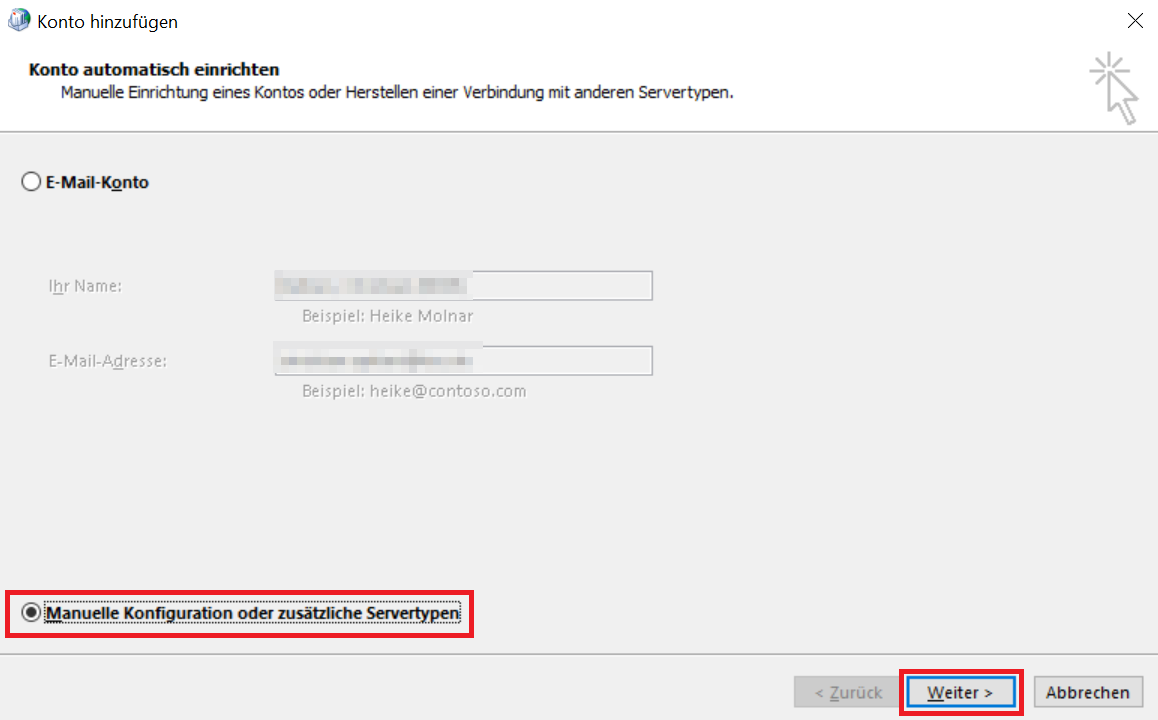
Beim Anlegen eines Outlook-Profil müssen Sie zuerst Manuelle Konfiguration oder zusätzliche Servertypen auswählen und mit Weiter voran schreiten.

Auf dem Bild wird gezeigt, dass Sie "Manuelle Konfiguration oder zusätzliche Servertypen" wählen und auf "Weiter" klicken sollen.

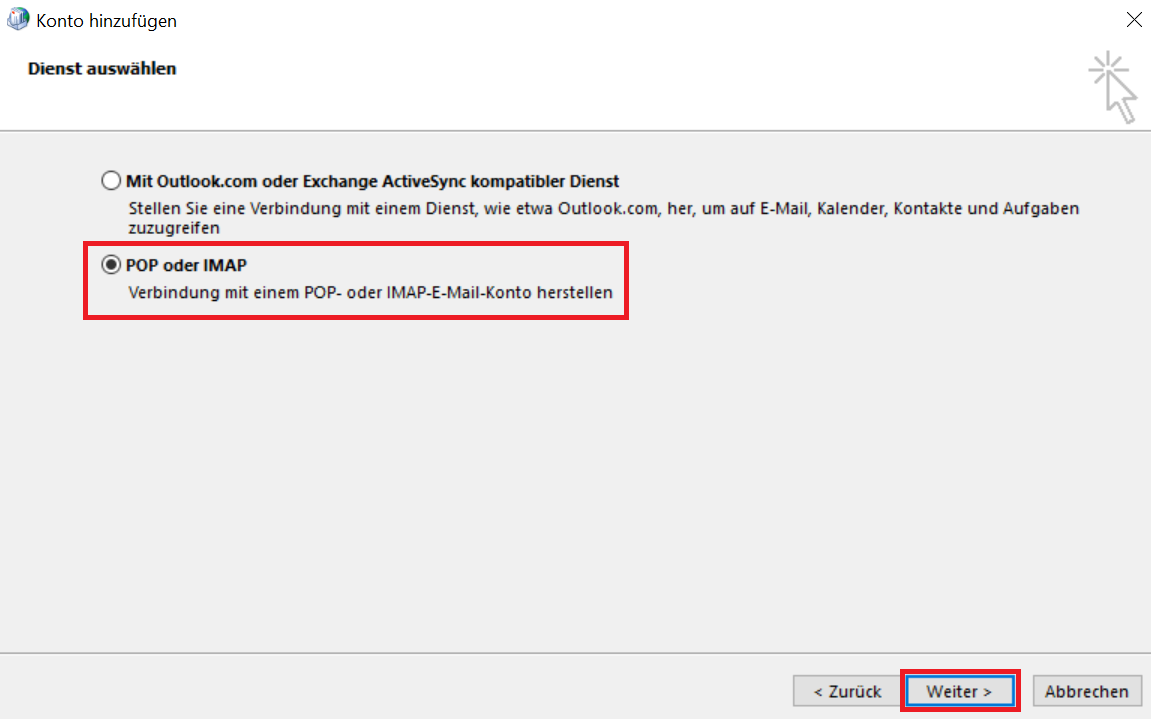
Wählen Sie hier POP oder IMAP aus und gehen erneut auf Weiter.

Auf dem Bild wird gezeigt, dass Sie "POP oder IMAP" wählen und dann "Weiter" klicken sollen.

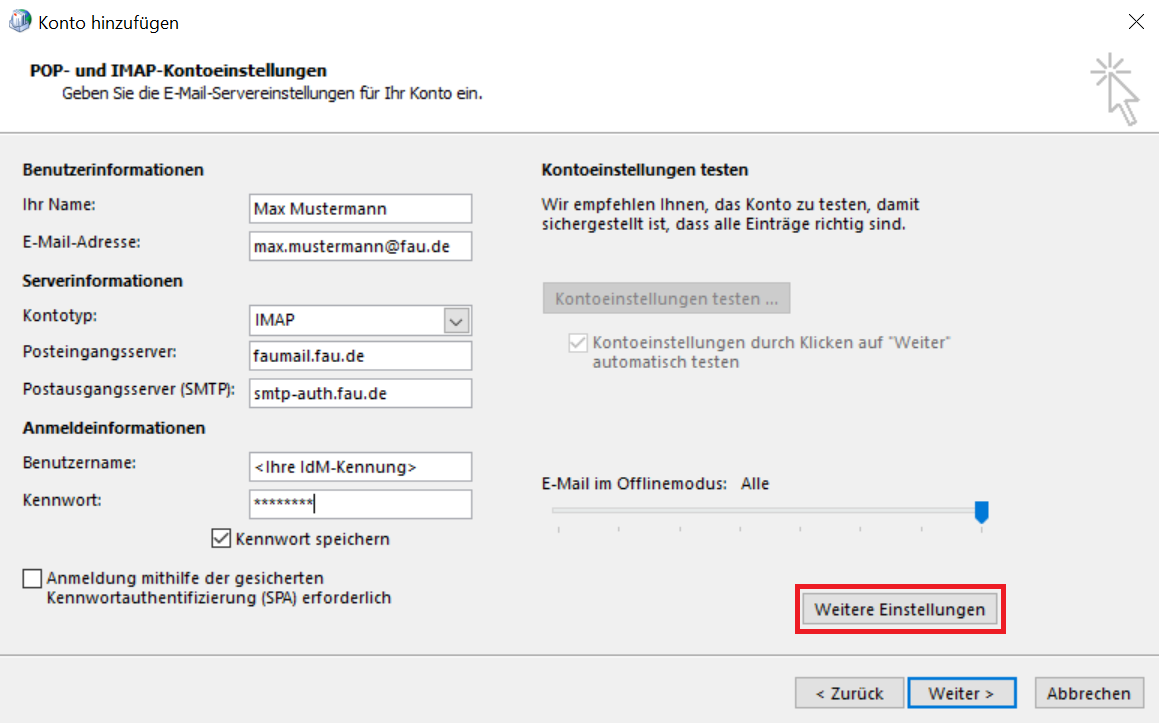
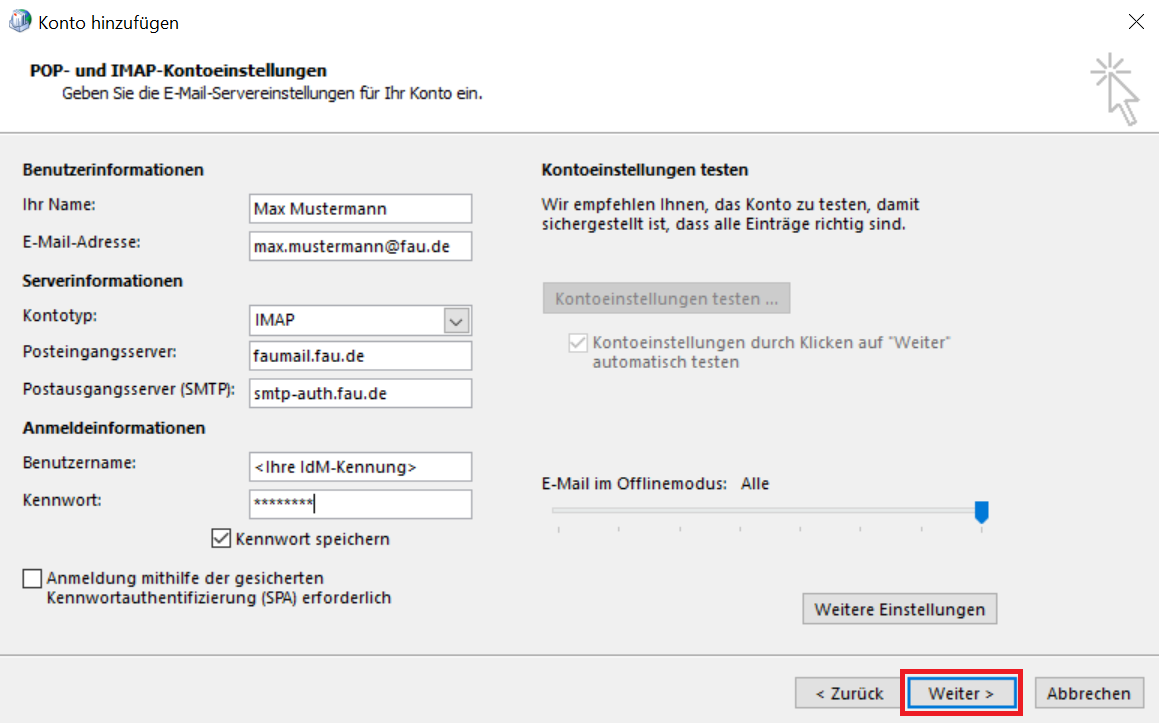
Geben Sie nun folgende Server-Konfigurationen ein:

  • Ihr Name: <Ihr Name>
  • E-Mail-Adresse: <Ihre FAU-Adresse>
  • Kontotyp: IMAP
  • Posteingangsserver: faumail.fau.de
  • Postausgangsserver: smtp-auth.fau.de
  • Benutzername: <Ihre IdM-Kennung>
  • Kennwort: <Ihr IdM-Kennwort>

Der der Einfachheit halber können Sie das Kennwort speichern. Sobald Sie alle Konfigurationen eingetragen haben gehen Sie weiter auf Weitere Einstellungen.

Im Bild wird gezeigt, dass sie auf "Weitere Einstellungen" klicken sollen.

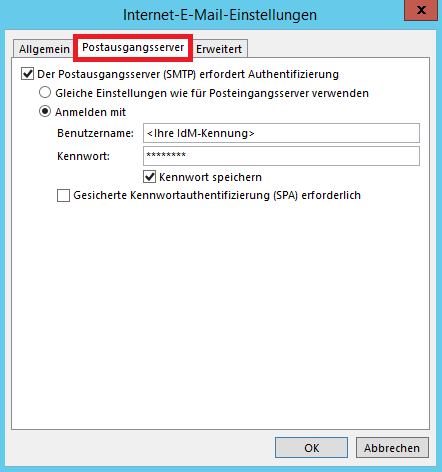
Es öffnet sich ein neues Fenster. Wechseln Sie den Reiter zu Posteingangsserver und setzen Sie den Haken bei Der Postausgangserver (SMTP) erfordert Authentifizierung. Geben Sie bei Anmelden mit Ihren Benutzernamen (IdM-Kennung) und das entsprechende Kennwort an.

Dieses Bild zeigt, dass Sie den Reiter "Postausgangsserver" wählen sollen.

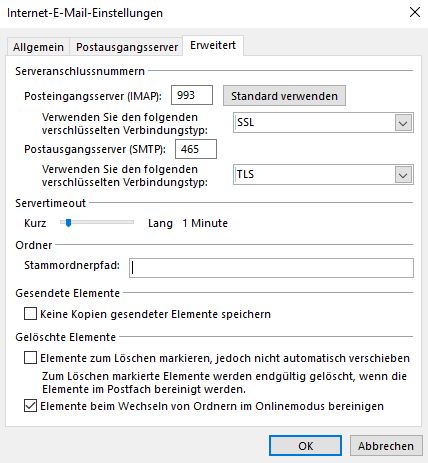
Wechseln Sie anschließend erneut den Reiter zu Erweitert und geben dort als Port für den Posteingangsserver (IMAP) bevorzugt 993 mit dem verschlüsselten Verbindungstyp SSL und, anders als im Screenshot dargestellt, für den Postausgangsserver (SMTP) den Port 465 an, sowie als verschlüsselten Verbindungstyp TLS. Um die Auswahl zu bestätigen gehen Sie auf OK.


Schließen Sie den Vorgang ab, indem Sie auf Weiter und zum Schluss auf Fertig stellen gehen.

Dieses Bild zeigt Ihnen, dass Sie auf "Weiter" klicken sollen, nachdem Sie alle Werte eingetragen haben.

Somit ist Ihr FAUMail-Postfach (Dovecot) in Ihrem Microsoft Outlook 2016 Client eingerichtet.


Microsoft Outlook 2019

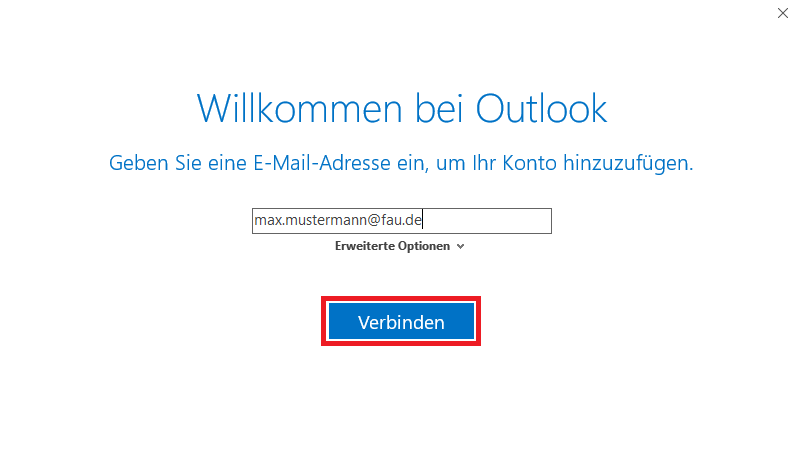
Beim Anlegen eines Outlook-Profil müssen Sie zuerst Ihre FAU-Mail-Adresse angeben und anschließend auf Verbinden gehen.

Das Bild zeigt Ihnen, dass Sie im Fenster "Willkommen bei Outlook" Ihre E-Mail-Adresse eingeben.

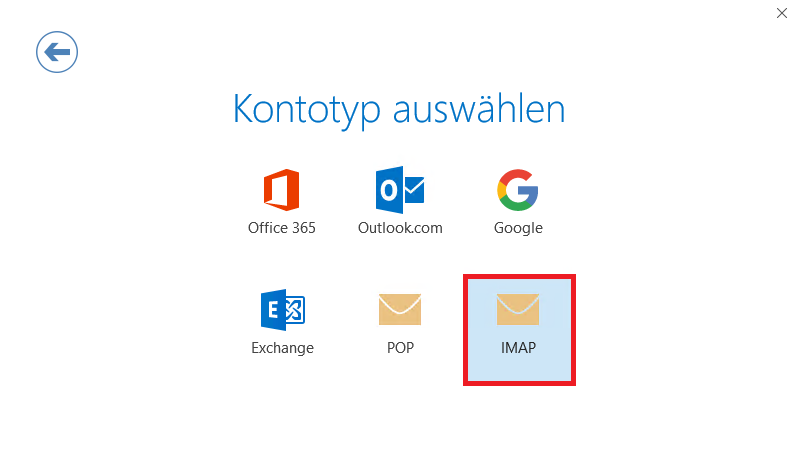
Wählen Sie daraufhin als Kontotyp IMAP aus.

Das Bild zeigt Ihnen, dass Sie im Fenster "Kontotyp auswählen" den entsprechenden Typ auswählen.

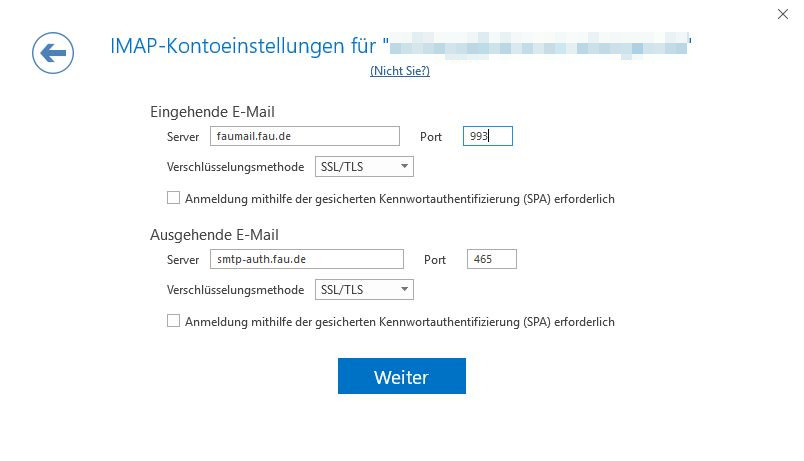
Als nächstes müssen Sie bevorzugt folgende IMAP-Kontoeinstellungen eintragen:

  • Eingehende E-Mail
    • Server: faumail.fau.de
    • Port 993
    • Verschlüsselungsmethode: SSL/TLS
  • Ausgehende E-Mail
    • Server: smtp-auth.fau.de
    • Port: 465
    • Verschlüsselungsmethode: SSL/TTLS

Abschließend müssen Sie noch Ihre Konfigurationen mit Weiter bestätigen.


Somit ist Ihr FAUMail-Postfach (Dovecot) in Microsoft Outlook 2019 eingerichtet.

Adressen der FAUMail-Server im Überblick

Adressen der FAUMail-Server im Überblick

Wo finde ich die Adressen der FAUMail-Server im Überblick?

Der E-Mail-Dienst an der FAU wird vom RRZE sowie von institutseigenen E-Mail-Servern erbracht.

Informationen für FAUMail-Nutzer

Siehe auch Zugangsdaten

Postausgangsserver: Versenden von E-Mails

Protokoll SMTP
Server smtp-auth.fau.de
Server erfordert Authentifizierung Ja
Sichere Verbindung (Verbindungsverschlüsselung) aktiviert
Sichere (Passwort-)Authentifizierung deaktiviert
Authentifizierungsmethode Klartext-Passwort
Port 465, SSL aktiviert (bevorzugt)

587, TLS bzw. STARTTLS aktiviert (alternativ)

Benutzername E-Mail-Adresse
Passwort IdM-Passwort

Posteingangsserver: Abrufen von E-Mails

Protokoll IMAP
Webmail
Server faumail.fau.de https://faumail.fau.de
Port 993, SSL aktiviert (bevorzugt)

143, TLS bzw. STARTTLS aktiviert (alternativ)

Benutzername E-Mail-Adresse E-Mail-Adresse
Passwort IdM-Passwort IdM-Passwort

Aus Sicherheitsgründen wird empfohlen, in den Einstellungen eines E-Mail-Programms das E-Mail-Passwort nicht zu speichern. Das E-Mail-Passwort sollte erst beim Starten des Programms eingegeben werden. Für E-Mail-Programme wird das Zugriffsprotokoll IMAP unterstützt.

Zoom (english)

Zur deutschsprachigen Version: Zoom Anleitung

The FAU offers Zoom video conferencing service as an alternative to DFNconf. You can use this tool to conduct video conference
calls, organize online workshops or provide live online classes.
The webpage with frequently asked questions offers various questions and answers on how to use Zoom. Additional information about Zoom can also be found on the general webpage for zoom (German)

General information

Zoom (english)

How do I obtain a Zoom license that I can use for organizing a webinar or a meeting with more than 300 participants?

For the organization of meetings with up to 300 participants no separate license is necessary.

Only for the organization of large meetings (>300 participants) or webinars with more than 300 participants, as well as generally for webinars (difference between webinar – meeting see here) appropriate licenses are necessary. FAU has procured a limited number of these and allocates licenses as needed.

If one of the above-mentioned special functions is required, please access the IdM portal and select the item „Request FAU Zoom options“ under „Requests/Tasks“ in the „Services“ section.

What do I need to install in order to be able to use Zoom?

Zoom-Clients are available for Mac, Windows or Linux, and also for iOS and Android. It is also possible to use Zoom in a limited fashion via a current browser. You can find information on operating system support and browsers on the support web page of Zoom

Which hardware is required for video calls?

You will need a (good) microphone, headphones and a suitable web cam. For optimal audio quality the RRZE recommends the use of a headset.
Due to the current situation it is unfortunately very difficult to obtain suitable hardware, because supplies cannot meet demands.

In addition, these devices are currently also not available via IT-procurement frameworks.
For this reason, institutes may obtain suitable devices from a supplier of their choice, provided the IT procurement guidelines of the FAU are being followed.
It is necessary, however, to first seek approval from the RRZE. In case of further questions please contact the RRZE directly at rrze-hardware@fau.de.

Who will install the Zoom client for me?

For computers maintained by the RRZE the relevant IT-Support Center will help you.
If your computer is not maintained by the RRZE, then please contact your local system administrator or install the client yourself: Download Zoom.

Please refere to the complete list of all frequently asked questions.

Zoom settings

Open the page fau.zoom.us/ via a web browser and click on the button LOGIN.
Once you have signed in with your IdM-ID you will get to the settings of your account.

For security reasons we recommend the following settings:

  • Activate waiting room for all your meetings.
    Settings → In Meeting (Advanced) → Waiting room → All participants
  • Require passwords.
    Settings → Schedule Meeting → Activate Require a password when scheduling new meetings
    Settings → Schedule Meeting → Activate Require a password for instant meetings
    Settings → Schedule Meeting → Activate Require password for participants joining by phone
  • Use mute control functions
    Settings → Schedule Meeting → deactivate Host video
    Settings → Schedule Meeting → deactivate Participants video
    Settings → Schedule Meeting → activate Mute participants upon entry
  • Use restrictions on screen sharing.
    Settings → In Meeting (Basic) → activate Screen sharing – Host Only
  • Use Only show default email.
    Settings → In Meeting (Advanced) → activate Only show default email when sending email invites

Hosting a Zoom-Meeting

Setting up a Zoom meeting requires a host with a Zoom account. The host invites participants to the meeting. The participants do not need to have a Zoom account.

For recurring meetings set up a meeting room once and then use this meeting room as often as you like:

  1. Define a topic for the meeting. Optionally you can also add a description.
  2. Select „Recurring meeting“ and under „recurrence“ select „No Fixed Time“. This way you can use the link that will be provided again and again.
  3. Video: Select „off“ for Host and Participant. During the meeting you can always set up video.
  4. Select „Mute participants upon entry“
  5. Optionally you can also select to record the meeting. For data protection it is recommended to only record locally.
  6. Save your settings; afterwards you will receive your Meeting-URL.
  7. Select „Copy invitation“ to copy all invitation details and send them to your participants. It is also possible to add this meeting to your calendar.

There are several different ways how to start a Zoom meeting:

  • To start an instant meeting go to fau.zoom.us/ in your browser. Select : Start a meeting. You are now in a meeting with a randomly generated ID. Invite participants from within the meeting.
  • Starting an instant meeting with the Zoom client. This way you also have the possibility to host a meeting with your personal Meeting-ID (PMI). For this simply click on the arrow next to the icon „New Meeting“.
    The PMI is your personal meeting room. Everyone who knows your PMI has access to your meeting room. Additional information on how to use the PMI is available on the zoom documentation.
  • Starting a scheduled meeting using your Zoom account. Select „Meetings“, set up a scheduled meeting or select an already existing meeting and click on „Start“.
  • Starting a scheduled meeting via the Zoom client. Select „Meetings“ in the navigation bar and then select an already existing meeting or click on the plus icon on the upper right of the navigation pane to schedule a new meeting.

Additional ways to start a meeting are also possible, for example from within your calendar. More information is available on the FAQ webpage of zoom.

  1. Choose your desired FAU background and save the image file locally → right click → Save Image As
  2. Start Zoom and click on the cogwheel icon on the upper right.
  3. On the left select „Virtual Background“ and then „Choose Virtual Background“. If you do not have any background to select we will show you how to add one in the next step.
  4. Click on the plus symbol and then on „Add Image“.
  5. Select the saved image file that you would like to add as background and click on „Open“.
  6. To change the background during a meeting, go to the little arrow next to „Stop Video“ and then click on „Choose Virtual Background“.

Do you have problems with selecting your microphone or your camera? Then please check your settings at:

  • Windows 10: Settings → Privacy → Camera/Microphone → Allow access ON Zoom ON
  • MACOS: System Settings → Security → Privacy → Camera/Microphone → check box for Zoom

When using Zoom via browser it may also be necessary to allow access to the microphone and/or camera.

Joining a Zoom meeting

To join a Zoom meeting it is not necessary to sign in as a user. It is enough to simply follow the meeting-URL in the email invitation of the host.

  1. In a current web browser follow the Meeting-URL that you have received from the host.
  2. If you are using Zoom for the first time on your device you will be asked to install the Zoom software.
    1. If you cannot install or run the software you have the opportunity to run Zoom in your browser. Additional information can be obtained here.
    2. If the Zoom software is already installed the Zoom client will open.
  3. Depending on the settings you will be asked to select an option for audio. Choose „Computer Audio“.
  4. After this step you will be in your meeting. Now you are able to enable camera and microphone.
  5. During the meeting you are able to control the main functions using the control bar at the bottom. It becomes visible whenever the mouse is within the window or when you tap onto the window.

Hosting a Zoom Webinar

To create a Zoom webinar, a presenter with a Zoom account with a webinar license is required. The presenter invites participants and visitors to a webinar. Participants can join a webinar with video and audio and do not need a Zoom account. Additionally, visitors can watch a webinar either with or without registration. They have the option to join the webinar via chat.
FAU has purchased a limited number of webinar licenses and allocates licenses as needed. Webinar licenses are assigned by the Institute for Learning Innovation (ILI). If more than 300 attendees are expected, then the Zoom „Webinar“ license is required and will be assigned to you upon request. To do this, please access the IdM portal and select „Beantragung von Zoom-Optionen“ under „Requests/Tasks“ in the „Dienstleistung“ section.

You can currently find information on webinars on the zoom documentation for the first steps to a webinar.

Schedule your webinar with or without sign-in for participants and guest participants. You can currently find information here:

planning a webinar with sign-in

planning a webinar without sign-in

General guidance on how to use meetings and webinars

In order to keep acoustic interferences for all participants during a meeting at a minimum, it is recommended to mute the microphone when not being used.
Built-in laptop microphones are only partially suitable for use. They transmit room and contact-bourne sound from keyboards which can lead to decreased clarity and unpleasant interferences. For recurring scheduling of meetings and especially of webinars it is recommended to use an external USB-microphone.
The use of loud speakers should be avoided. It can lead to acoustic feedback. For this reason use a headset, or at least headphones; ideally use an audio-voice combination as it comes with every standard smartphone.
Do not use VPN access.

Outlook-Profil

Outlook-Profil

Wie kann ich Outlook-Profile verwalten?

Systemsteuerung

Um Ihre Outlook-Profile zu verwalten, müssen Sie zuerst über die Systemsteuerung alle Profile auflisten.

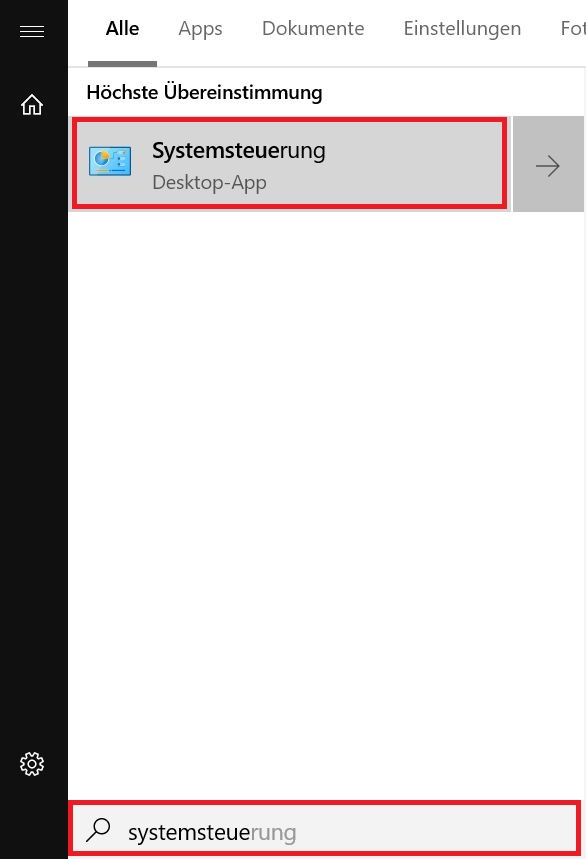
Suchen Sie in der Windows-Suche nach der Systemsteuerung und starten diese.

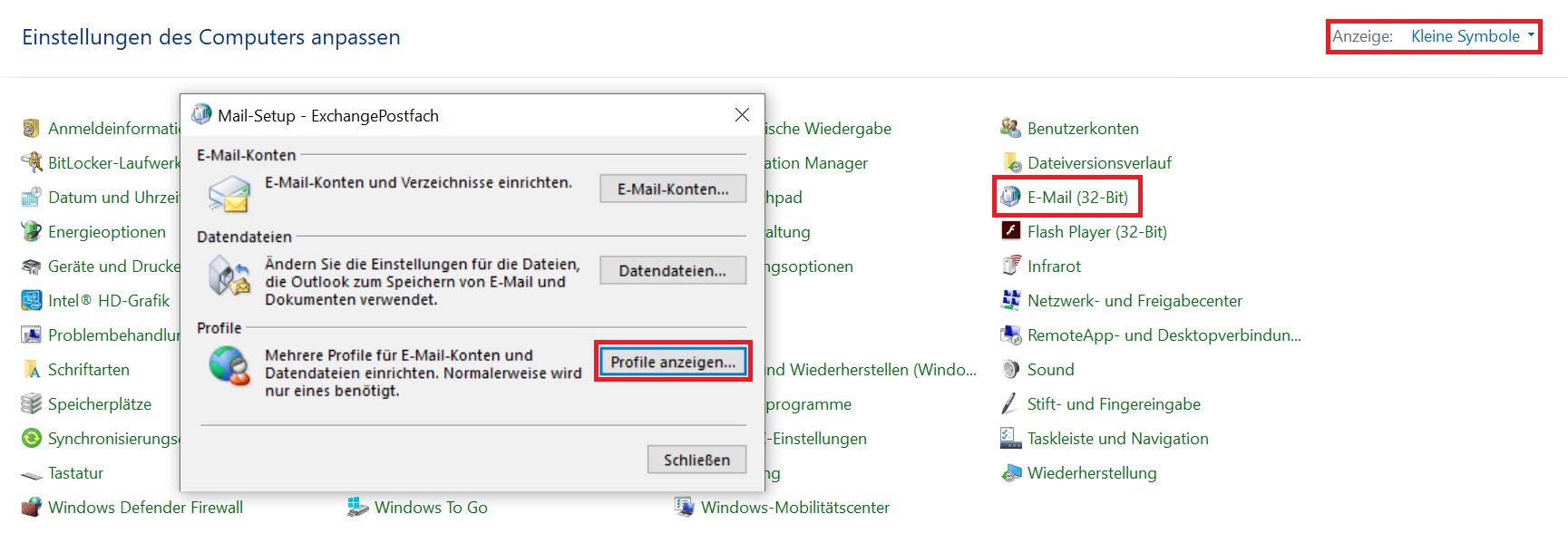
Wählen Sie in der Systemsteuerung den Punkt E-Mail aus. Sollten Sie diesen Punkt nicht finden, ändern Sie die Ansicht auf Kleine Symbole, damit Sie alle Einstellungen übersichtlich sehen können.

Wenn Sie im nächsten Fenster Profile anzeigen auswählen, erscheint die Auflistung aller Outlook-Profile.E-Mail & Profile anzeigen

Neues Profil anlegen

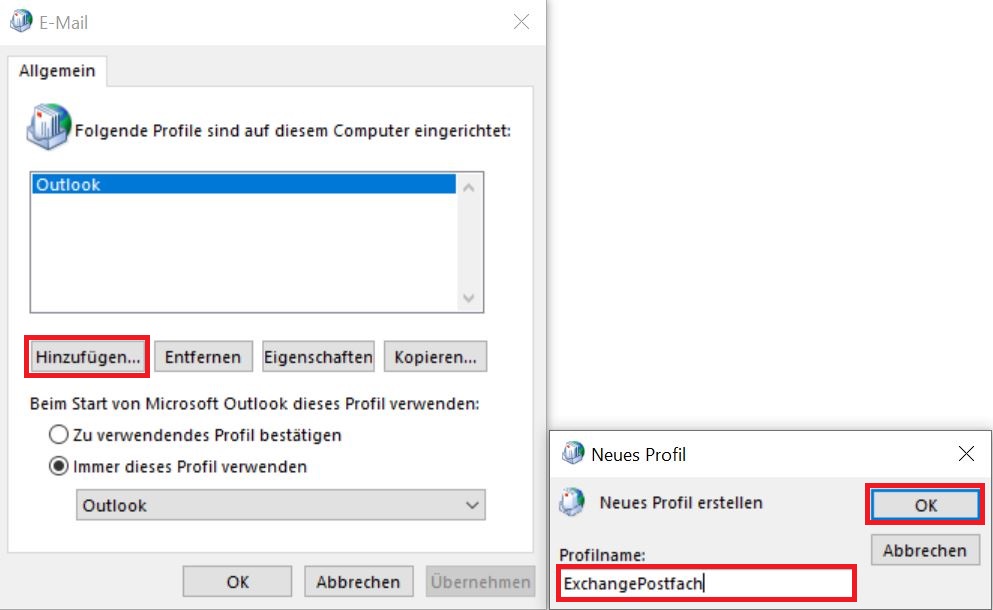
Ein neues Profil können Sie erstellen, indem Sie Hinzufügen auswählen. Daraufhin müssen Sie einen Namen für das Outlook-Profil eingeben. Es wird empfohlen, einen passenden Namen einzutragen.

Neues Outlook-Profil

Im Anschluss können Sie Ihr Exchange-Postfach einrichten.

Anderes Profil auswählen

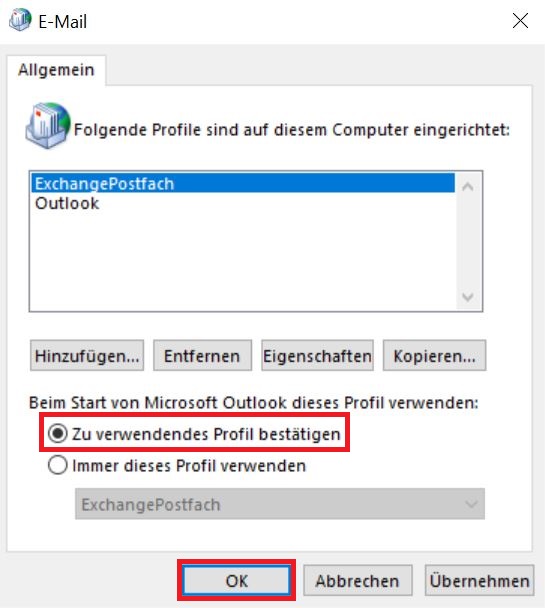
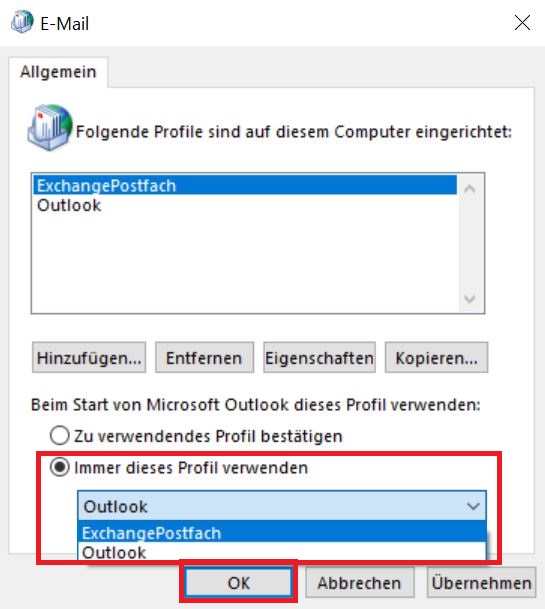
In diesem Fenster können Sie auch aussuchen, welches Profil nach dem Start von Outlook genutzt werden soll.

Sie haben die Möglichkeit, bei Beim Start von Microsoft Outlook dieses Profil verwenden auszuwählen, ob Sie jedes Mal gefragt werden sollen, welches Profil Sie verwenden möchten (Abbildung links). Wenn immer dasselbe Profil gestartet werden soll, können Sie hier auch das entsprechende Profil auswählen. (Abbildung rechts).

Am Ende können Sie die Einstellung mit OK speichern.

Outlook-Profil verwenden    Outlook-Profil auswählen

Profil löschen

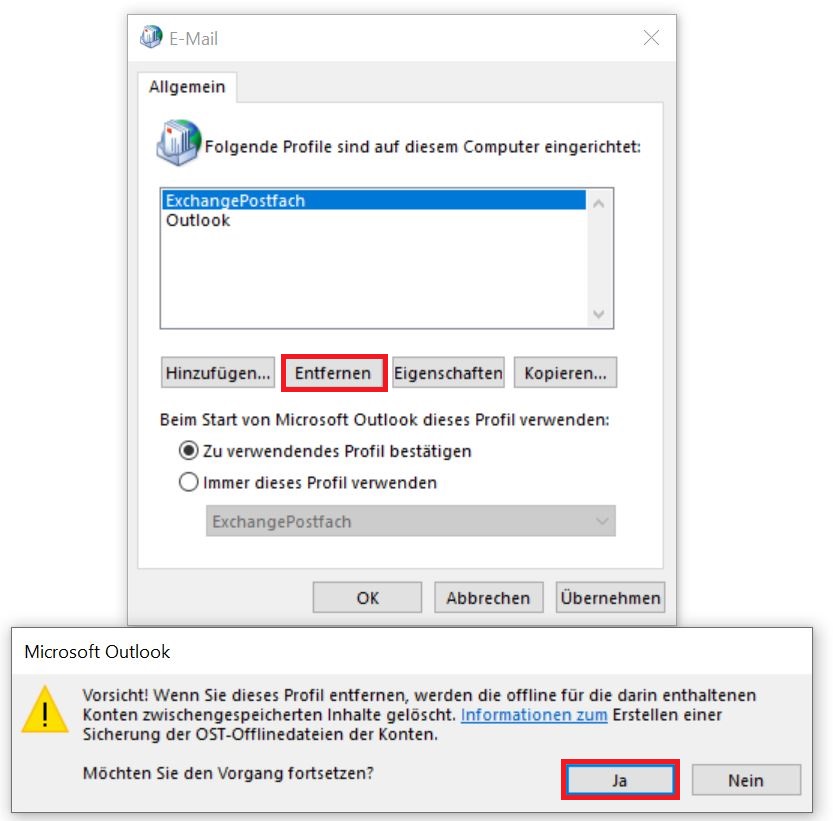
Ein Outlook-Profil können Sie löschen, indem Sie zuerst das entsprechende Profil und anschließend Entfernen auswählen. Wählen Sie bei der nächsten Abfrage Ja aus, wenn Sie sich sicher sind, das Profil löschen zu wollen.

Alle Inhalte aus dem Exchange-Postfach werden nicht gelöscht, da diese auf einem zentralen Server liegen und Sie auf Ihr Postfach auch über die Weboberfläche Outlook Web App (OWA) weiterhin zugreifen können.

Achtung: Alle Elemente, die nicht auf dem Exchange-Postfach sind, sondern nur in Outlook eingebunden wurden, wie z. B. ein Offline-Archiv (PST-Dateien), gehen hierbei verloren.

Outlook Profil entfernen